

Wristshade
Dim your watch screen so others can’t read it, or black it out in a tap.

Screenshots
Real screens.
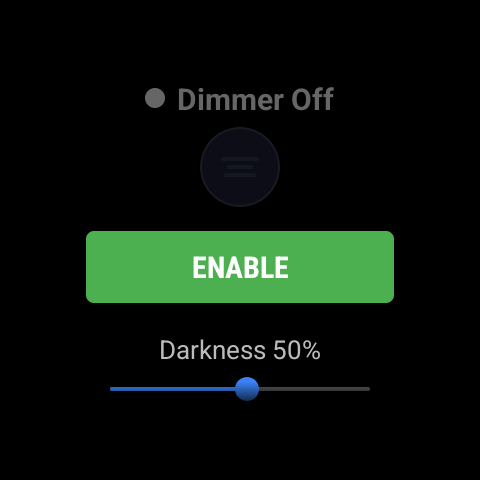
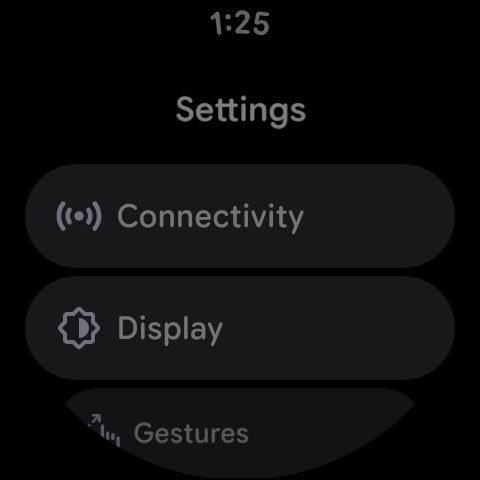
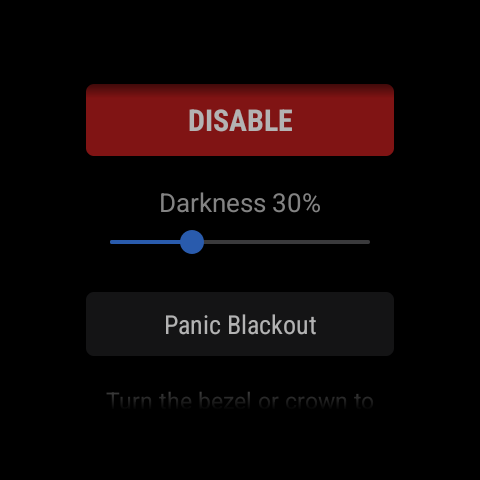
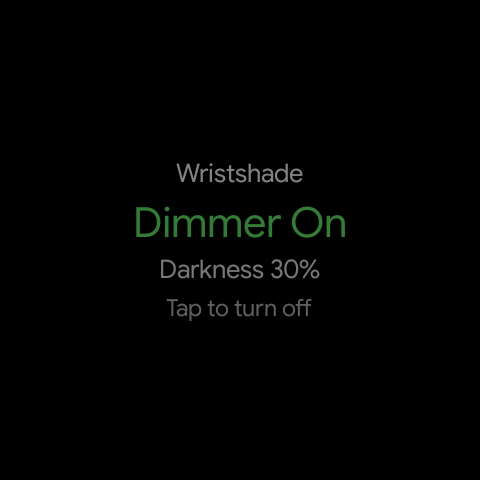
Real captures of Wristshade on a Wear OS watch, never simulated.
Features
What it does.
Wristshade puts a dark shade over your whole Wear OS watch screen, from 0 to 95%, while your taps still work. Panic Blackout turns the screen fully black in one tap. It has no internet access and collects no data.
A dimmer over every app
Dims the whole screen from 0 to 95%, over every app and the watch face, while touches still work. Set the darkness with the slider, or turn the bezel or crown on the Wristshade screen.
Panic Blackout
One tap turns the screen fully black and blocks touches. Tap anywhere, or turn the bezel or crown down, to go back to your dimmer level, over any app.
Quick Tile
Add the Wristshade tile and tap it to turn the dimmer on or off without opening the app.
Private by design
The accessibility service only draws the dark layer. It does not read, record or share what is on your screen, what you type or what you tap. No internet access, no account, no ads.
Get started
Up and running in 3 steps.
Install it on your watch
Get Wristshade from the Play Store on your watch, or from Google Play on your phone or computer.
Read the notice and tap Agree
Wristshade explains what its accessibility service does and what it never does. Agree opens Settings > Accessibility on the watch.
Turn on Wristshade
Turn on the Wristshade switch and confirm. No computer, phone app or developer settings needed. Turn it off in the same place at any time.
A Wear OS watch (Wear OS 3 or later). No phone app is needed.
Support
Help & FAQ.
Still stuck? Email support@northglance.com and mention Wristshade.
Wristshade privacy policyWhat the app accesses and why, in plain wordsWhy does Wristshade need an accessibility service?
On Wear OS, an accessibility service is the only way an app can draw over other apps and the watch face. Wristshade uses it only to draw its dark layer and, during Panic Blackout, to catch the tap or the bezel or crown turn that ends it. It subscribes to no accessibility events and cannot read what is on your screen.
Why does my watch say Wristshade can observe your actions
?
Wear OS shows that same sentence for every accessibility service when you turn one on. Wristshade does not observe anything: it reads no screen content, no typing and no taps, and it has no internet access.
The bezel or crown doesn’t change the darkness in other apps.
That’s on purpose. The bezel or crown sets the darkness on the Wristshade screen, so other apps keep their normal scrolling. The tile turns the dimmer on or off from anywhere, and turning the bezel or crown down ends Panic Blackout over any app.
Why isn’t the always-on screen dimmed?
The always-on screen shows only your watch face’s low-power view, and dimming it would make the time hard to read. Wristshade dims the screen whenever it is fully on.
How do I turn it off or delete my data?
Tap Disable in Wristshade, or use the tile. To switch the service off, go to Settings > Accessibility on the watch. Uninstall Wristshade, or clear its storage, to delete its settings. It keeps nothing anywhere else.
Wristshade is an independent app and is not affiliated with or endorsed by Google.
Follow along.
Wristshade is coming soon to Google Play. Follow Northglance to hear on launch day.